What Is an M4A File?
An M4A is an audio file in the MP4 container, usually holding AAC encoded audio, and Apple devices create it by default. If you are wondering what is an M4A file, the simple answer is that it stores audio without the video content often associated with MP4. You may see this extension after recording a voice memo, exporting a meeting, or moving audio off an Apple device.
M4A means MPEG 4 Audio. That explains what does M4A mean, though the name does not tell you much about what to do with the file. Most M4A recordings contain AAC audio, a compressed format that keeps files reasonably small while retaining useful speech detail.
The confusion comes from the shared MP4 container family. An MP4 file can hold video, audio, subtitles, and other data, while an M4A file is intended mainly for audio. That is the practical answer to what is M4A format when an unfamiliar extension lands in your downloads folder.
Renaming an M4A file as an MP4 can appear to work in some media players because they inspect the content inside the file. Still, renaming does not convert the recording or change its audio encoding. It only changes the label, and that can create compatibility issues later.
Where M4A Files Come From
You can end up with an M4A file without ever choosing the format yourself. An iPhone usually saves Voice Memos as M4A files, while recorded calls may use the format when local rules and your recording method allow capture. Conference exports, messaging apps, and some digital voice recorders can also create M4A audio.
A digital voice recorder may use M4A to save space during interviews, field notes, or long conversations. It is also convenient when you need to move a file between a recorder, phone, and computer. That is why you may find M4A files in a folder even though you expected a more familiar extension.
Recorded lectures are another common source. A student may make a lecture recording on a phone, then find an M4A file while moving it to a computer for review. The file is still ready to use, even if the format was never visible during the recording.
Meeting platforms and workplace systems can export audio as M4A as well. In that situation, the extension usually reflects an export setting rather than a decision you made while recording. Knowing where the file came from can help you keep the original intact instead of converting it out of habit.
Do You Need to Convert M4A to MP3 First?
You do not need to convert M4A to MP3 before transcribing it if your transcription workflow accepts M4A uploads. People searching how to convert M4A to MP3 often assume MP3 is required because they recognize the extension. For transcription, using the original file usually gives you a better starting point.
M4A files with AAC audio and MP3 files are both usually compressed. Converting between them means decoding the audio and compressing it again, which can remove a little more detail. That extra pass may make quiet speech, background voices, or unclear words harder to catch.
The same applies if you are looking up how to turn M4A into MP3 or how to change M4A to MP3. Conversion cannot restore detail that was not present in the original recording. It simply creates a new file that may be easier for certain devices or programs to open.
There are a few cases where conversion is useful. An older playback device may not support M4A, or a specific desktop program may refuse the extension. If you need playback compatibility, making an MP3 copy can help while you keep the original M4A file safe.
You may also search how do I convert a M4A file to MP3 because your computer has no obvious app for opening it. Before converting, try playing the file in a current media player. If what you really need is written text, upload the original audio to a service that supports M4A and skip the extra encoding step.
How to Transcribe an M4A File
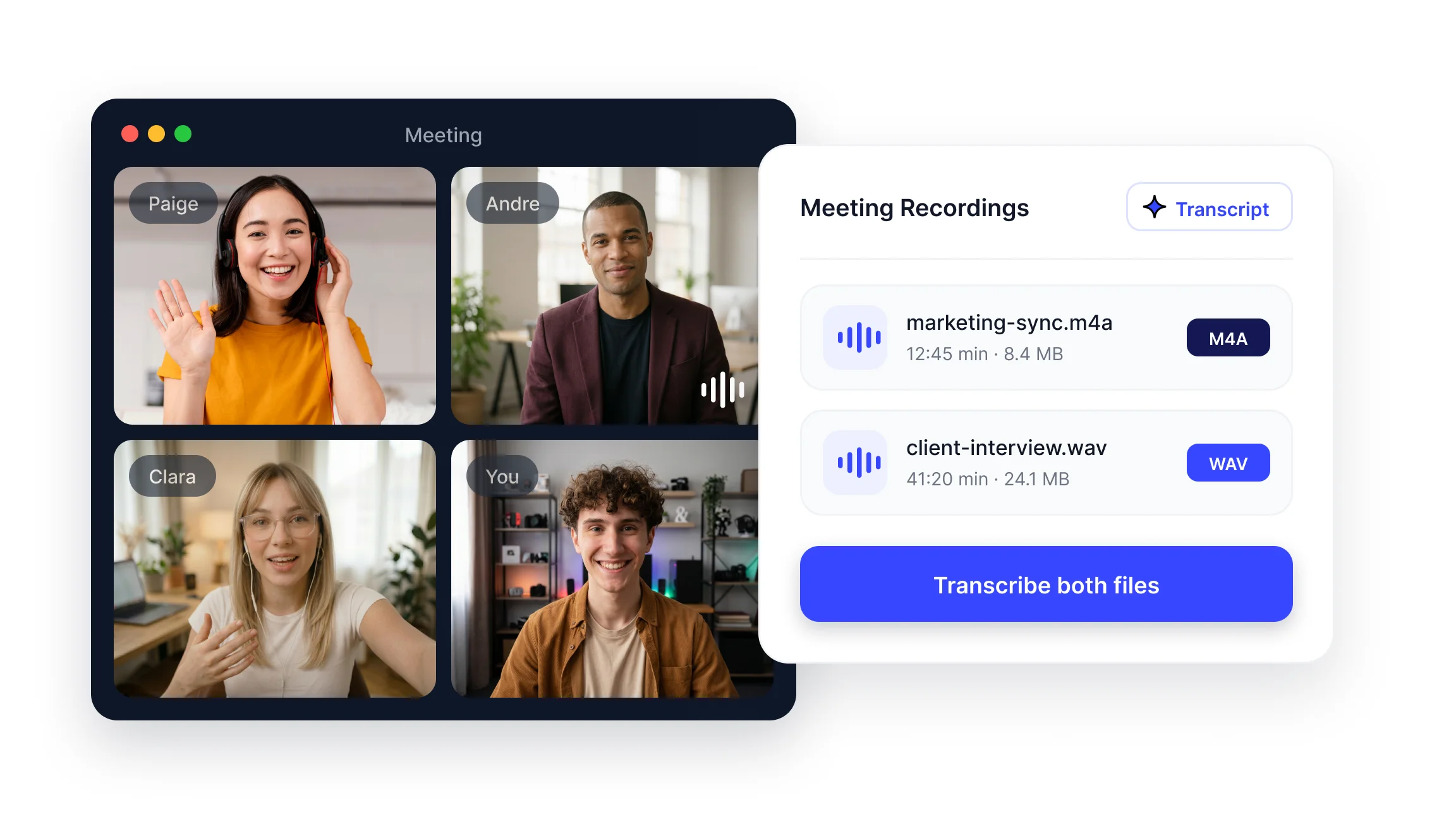
M4A transcription starts with the file you already have. Smart Noter accepts recorded audio and turns spoken content into a timestamped transcript. Use its audio to text workflow for meeting notes, interviews, voice memos, or other recordings you want in writing.
To transcribe M4A to text, upload the original M4A file without renaming or converting it. Select the language spoken in the recording, then choose speaker labels if more than one person is talking. Once the transcript is ready, review names, technical terms, numbers, and any sections where the audio is hard to hear before exporting it.
On Windows, find the M4A file in File Explorer and upload it through your browser. You do not need to assign the extension to a desktop media player first. Keeping the original in a clearly named folder also makes it less likely that you will upload the wrong recording.
On macOS, the file may appear in Finder, Voice Memos, or another media folder. Save or export it to a location you can easily find before uploading. If it is still inside an app, use the app’s share or export option instead of changing the file extension.
On a phone, open the audio file and use the share option to save it locally or send it to the transcription page. Longer recordings can take more time to upload over mobile data. A stable wireless connection helps avoid interrupted transfers.
Transcribing an iPhone Voice Memo
iPhone voice memo transcription starts in Voice Memos. Open the recording you need, then use the sharing options to save it or send it to the device where you plan to transcribe it. The exported file will usually remain an M4A, and there is no need to change it first.
A voice memo file name often comes from its title, location, or whatever label was added during recording. Before uploading, rename the saved copy with a clear subject and date. That small step is helpful when you have several lectures, interviews, or client conversations from the same week.
A long memo recorded in a pocket may include fabric noise, movement, and shifts in microphone direction. Avoid compressing it again, since the original already contains difficult sections. When reviewing the transcript, use timestamps to compare uncertain wording with the matching section of audio.
If two people spoke across a table, turn on speaker labels during the voice memo to text process. Clear, distinct voices and minimal interruptions make the labels easier to check. When people talk over each other often, review each speaker change before treating the dialogue as final.
For future conversations, Smart Noter also offers a recording workflow for capturing audio for transcription and summaries. Place the phone where both speakers can be heard, and keep the microphone uncovered. Good placement usually matters far more than the extension attached to the finished file.
How to Transcribe a WAV File
A WAV to text workflow follows the same basic process as M4A transcription. Upload the WAV file, choose the spoken language, select speaker labels if needed, then review and export the transcript. The main difference is how WAV stores the audio.
WAV commonly contains uncompressed audio, so files are much larger than M4A recordings of the same length. Upload limits and transfer times can become an issue sooner, especially with lengthy interviews or full day events. Keep the source file saved locally until the upload and transcription are complete.
Because uncompressed WAV audio has not had details removed through compression, it can be a strong option when accuracy matters. Still, format alone cannot fix poor microphone placement, room echo, or heavy background noise. A clear recording remains the best foundation for accurate text.
M4A to Text or WAV: Which Records Better?
WAV generally keeps more of the sound captured during recording, while M4A keeps files smaller and easier to move. The right choice depends on how important the session is, how long it will run, and how much storage you have available. Both formats can work well for transcription when people are recorded clearly.
