What Voicemail to Text Means
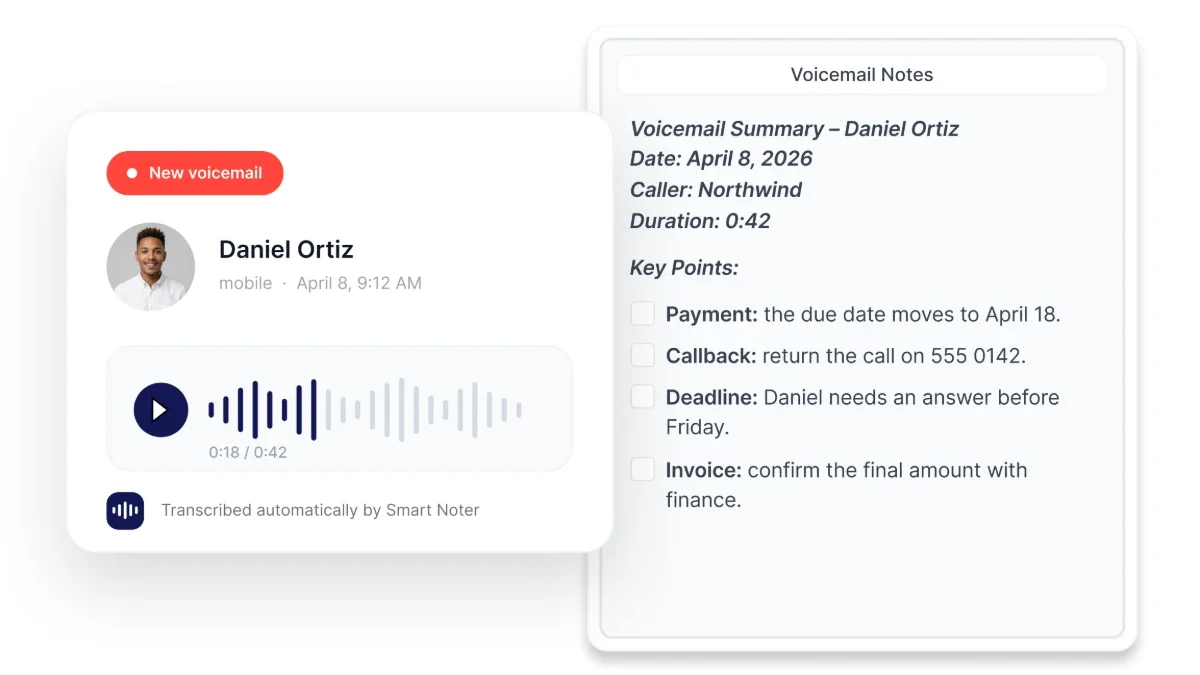
What is voicemail to text? It is speech recognition that turns a spoken voicemail into written words. Your phone may show the text inside Visual Voicemail, or your voicemail service may send the message content in a text message.
Phone based voicemail transcription usually works with new messages after they reach your inbox. Whether it is available can depend on your device, operating system, language, region, and voicemail service. It is useful when you cannot listen right away, but it may not give you a separate file or document for long term storage.
You need a different method if you want to transcribe voicemail that already exists. First, save or share the message as an audio file, then convert the file into editable text. That approach works well for older messages and important records because you can keep the original audio beside the transcript.
How to Turn On Voicemail to Text on iPhone
If you want to know how to turn on voicemail to text on iPhone, open the Phone app and tap Voicemail. On supported devices, iOS shows a transcript after you open a message, rather than giving you a separate transcription switch. You may need to finish setting up Visual Voicemail by following the prompts in the Voicemail tab.
Availability depends on iOS, your region, your selected language, and support from your voicemail service. If transcripts do not appear, update iOS, make sure Visual Voicemail is working, and check whether your voicemail setup supports transcription. A missing option often comes down to regional or service availability, not a problem with your iPhone.
When the feature is available, the written message appears near the playback controls. Longer messages may take a little time to process. Listen while you read, especially when you need to check names, dates, addresses, or phone numbers.
People searching how to receive voicemail as a text may mean they want a text message sent to their phone. That is usually controlled through the voicemail service rather than standard iPhone settings. Check the voicemail options connected to your account before changing notification settings.
How to Turn On Voicemail to Text on Android
The steps for how to get voicemail to text on Android vary because phones use different Phone apps and voicemail setups. Start by opening the Phone app, choosing Voicemail, and looking in Settings for Visual Voicemail or voicemail transcription. If your phone asks you to set up the voicemail inbox first, complete that before testing transcription.
Some Android phones show a transcript when you open an individual message. Others keep transcription controls in voicemail settings, while some setups offer audio playback only. Your phone model, Android version, region, language, and voicemail service can all affect what appears.
Visual Voicemail is often required because it displays messages individually in the Phone app. If you cannot find the Voicemail tab or a transcription setting, confirm that voicemail is active and update both Android and the Phone app. Restarting the phone may refresh its connection, but it cannot add a feature your voicemail setup does not support.
How to Turn Off Voicemail to Text
How to turn off voicemail to text depends on where you see the written message. On Android, open the Phone app's voicemail settings and turn off transcription if that option is available. This should keep voicemail active while removing the text version.
If your iPhone shows transcripts in Visual Voicemail without a separate switch, iOS may not let you turn off only the transcript. You can still control previews and notifications through Settings, then Phone or Notifications, depending on your iOS version. Turning off Visual Voicemail can change how you access messages, so check what will happen before you make that change.
Text message copies are separate from transcripts shown in the Phone app. If you are looking for how to stop voicemail text messages on iPhone, check the settings for your voicemail service or account. Blocking the sending number may hide those messages, but it can also block useful alerts instead of stopping delivery at the source.
Privacy is a common reason people ask how to stop voicemail to text. A written preview can expose personal details on a locked screen or shared device. Hiding notification previews can protect that information while still letting you listen to voicemail and read transcripts after unlocking your phone.
How to Transcribe a Saved Voicemail
If you are looking up how to convert voicemail to text, begin by moving the message out of your voicemail inbox. Open the voicemail, choose Share or Export if the option appears, and save it to Files, OneDrive, or another secure location. Depending on your phone, you may also be able to send the audio file to yourself.
A voicemail audio file often comes in M4A, MP3, WAV, or another format your device supports. File names can be vague, so rename the recording with the caller's name, date, and subject while you still remember the details. Keep the original format unless the place where you are sending it cannot accept that file type.
Upload the saved file to Smart Noter through its audio to text workflow. Smart Noter turns the spoken content into written text that you can review, correct, and organize. Keep the source audio close by while checking the transcript against what the caller actually said.
If you are asking how do I convert voicemail to text, do not confuse transcription with translation. Transcription writes down the language spoken in the message. Translation changes that written content into another language, so make sure you choose the result you actually need.
When You Need the Voicemail as a Record
A transcript matters more when a caller leaves instructions that affect later work. A client may change the scope of a task, or a supplier may confirm a different delivery date. If there is a dispute, exact wording and tone can matter just as much as the text itself.
Keep the audio with the written transcript instead of treating the transcript as a replacement. Speech recognition can mishear a negative word, confuse a name, or split a number the wrong way. The original recording gives you something to check when wording is disputed or details need confirmation.
When you have several related messages, Smart Noter can help you organize the converted text and review the notes together. Its AI chat can help you find specific details in processed material. Before relying on names, figures, or commitments, return to the original audio and check the relevant section.
Saving a Voicemail Before It Disappears
A voicemail sitting in your phone inbox is not permanent storage. Retention and deletion rules come from the voicemail service, not only from your device. Once a message reaches its retention limit, getting it back may be difficult or impossible.
Save an important voicemail on the day you receive it. Open the message, choose Share or Export, and store the file somewhere you control. Then play the exported audio to make sure it works before assuming the transfer was successful.
If the Phone app does not offer file export, look for forwarding or sharing options on the message screen. You can also play the voicemail through a speaker and capture it using a recording workflow, as long as you follow applicable consent and privacy rules. Direct export is still the better choice because it keeps room noise out of the copy.
Give each saved voicemail a clear file name and keep its original date with it. Store related transcripts beside the source audio so you can see what belongs together. Taking these steps early can prevent a valuable message from disappearing before you have reviewed or documented it.
Why Voicemail Transcription Gets Names and Numbers Wrong
Voicemail is difficult for speech recognition because phone networks compress audio and remove detail. The caller may hold the phone too far away, speak from a moving car, or leave the message on a noisy street. Accents, weak connections, and messages that end abruptly can make the result less reliable.
Proper nouns are particularly difficult because a person's name may sound like several common words. Digit strings offer very little context, so phone numbers, dates, reference codes, and amounts can be separated or replaced incorrectly. A transcript that looks confident is not proof that those details are correct.
Check names and numbers first in every voicemail transcript. After that, review addresses, deadlines, negative words such as “not,” and any sentence that changes an obligation. Replay the relevant audio slowly and compare it with the written text.
Smart Noter provides transcription for saved audio, but the source recording still affects the result. Keep the original audio until you have confirmed important details with the caller or another reliable record. For legal, financial, medical, or contractual matters, treat the transcript as a working document, not your only proof.
Your phone's feature helps you read new messages quickly, while file transcription helps you keep the messages that matter. Smart Noter can turn a saved voicemail to text while leaving the source audio available for review. Choose the option that fits what you need to do with the caller's words.
