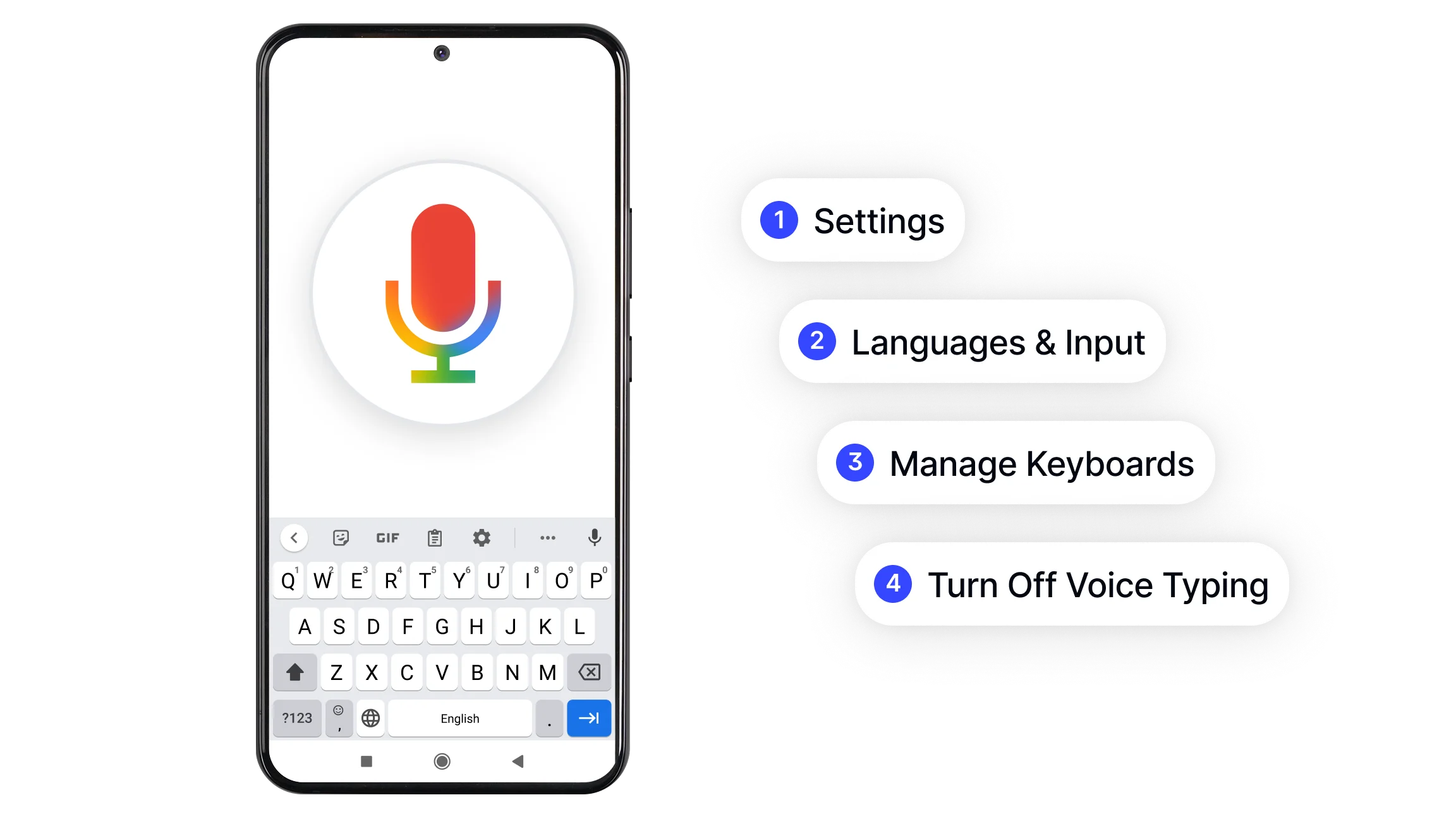
Disable Google Voice Typing from Android System Settings
This method works on most Android devices and disables Google Voice Typing at the system level. Use this first before trying keyboard-specific settings.
Open the Settings app on your Android device.
Tap System (or General management on Samsung devices).
Select Language and input or Languages and input.
Tap On-screen keyboard or Virtual keyboard.
Tap Manage keyboards if the option is shown.
Find Google voice typing in the list and toggle it off.
Restart the device if the change does not apply immediately.
Menu names vary depending on your Android version and device manufacturer. On some devices, the path reads Settings > System > Language > Keyboard and on others it reads Settings > General management > Language and input. The toggle itself is consistently labeled Google voice typing or Voice typing.
Turn Off Voice Typing from Gboard Settings
If you use Gboard as your keyboard, you can disable voice typing directly within the keyboard interface without navigating to the system settings.
Open any app that displays the keyboard, such as Messages or Gmail, and tap a text field so Gboard appears.
Tap the gear icon at the top of the keyboard. If you do not see it, press and hold the comma key and then tap the gear icon that appears.
Tap Voice typing in the Gboard settings menu.
Toggle off Use voice typing or Assistant voice typing.
Go back to the text field and confirm the microphone icon is no longer visible on the keyboard.
Disabling voice typing in Gboard removes the microphone button from the keyboard bar and prevents the voice typing interface from appearing when the keyboard is active. This method applies only to Gboard and does not affect other keyboard apps that may be installed.
Turn Off Google Voice Typing on Samsung Devices
Samsung devices run One UI on top of Android and use a slightly different settings path than stock Android. Samsung also includes its own keyboard alongside Gboard, which means voice typing may need to be disabled in two separate places.
Disabling through system settings on Samsung:
Open Settings.
Tap General management.
Tap Language and input.
Tap On-screen keyboard.
Tap Manage keyboards.
Toggle off Google voice typing.
Disabling Samsung Keyboard voice input:
Open Settings.
Tap General management.
Tap Language and input.
Tap On-screen keyboard.
Tap Samsung Keyboard.
Tap Voice input and set it to off or select the option to not show the voice input key.
On Samsung devices, both Google voice typing and Samsung Keyboard's own voice input feature can display a microphone icon. Disabling one without the other may leave the icon visible. Disable both to remove the microphone from the keyboard entirely.
For Samsung Galaxy devices on One UI 5 and later, the path may read Settings > General management > Samsung Keyboard settings > Voice input rather than going through Manage keyboards.
Remove the Microphone Icon from the Keyboard
If the microphone icon continues to appear after disabling voice typing, multiple keyboards or input methods may be active simultaneously. Each active keyboard can add its own microphone button independently.
Go to Settings > System > Language and input > On-screen keyboard.
Tap Manage keyboards and review the full list of active keyboards.
Toggle off any keyboards you are not actively using, particularly any that include voice input by default.
Set a single default keyboard: go to Settings > Language and input > Default keyboard and choose your preferred keyboard.
Open a text field and confirm the microphone icon is no longer present.
On Samsung devices, the path to manage keyboards reads Settings > General management > Language and input > On-screen keyboard > Manage keyboards.
Having only one active keyboard simplifies the settings and prevents voice input from being reintroduced by a secondary keyboard app.
How to Turn Off Hey Google and Voice Match on Android?
Hey Google and Voice Match are separate from Google Voice Typing on the keyboard. Hey Google is a voice activation feature that listens for the wake phrase to launch Google Assistant. If you want to disable voice activation rather than just the keyboard microphone, the settings are in a different location.
Open the Google app on your Android device.
Tap your profile photo in the top right corner.
Tap Settings.
Tap Google Assistant.
Tap Hey Google and Voice Match.
Toggle off Hey Google.
Alternatively, go to Settings > Google > Settings for Google apps > Search, Assistant and Voice > Voice > Voice Match and toggle off Hey Google from there.
Turning off Hey Google stops the device from listening for the wake phrase in the background. This is separate from the keyboard microphone and requires its own setting to disable.
Fix: Google Voice Typing Will Not Turn Off
If Google Voice Typing continues to reappear or the microphone icon returns after disabling it, one or more of the following is likely causing the issue:
Restart the device. Setting changes do not always apply until the device is restarted, particularly for keyboard and input method changes.
Update Gboard and the Google app. Older versions of Gboard sometimes have bugs that cause voice typing settings to reset. Update both through the Play Store.
Clear the Google app cache. Go to Settings > Apps > Google > Storage > Clear cache. This removes temporary data that may be overriding your settings.
Check accessibility settings. Some accessibility services enable voice input features independently of the keyboard settings. Go to Settings > Accessibility and review which services are active. Disable any that use voice input if you no longer need them.
Ensure only one input method is active. Multiple active keyboards frequently cause conflicts. Go to Manage keyboards and disable all keyboards except the one you use.
Check Google Assistant settings. If Google Assistant is configured to activate with voice commands, it may reintroduce voice input behavior even after the keyboard microphone is disabled.
Uninstall Gboard updates. If the issue began after a Gboard update, go to Settings > Apps > Gboard > three-dot menu > Uninstall updates to roll back to the factory version.
Reinstall Gboard. If uninstalling updates does not resolve the issue, uninstall and reinstall Gboard from the Play Store to reset all keyboard settings to default.
When to Keep Google Voice Typing On?
Disabling Google Voice Typing is the right choice for many users, but it is worth noting the scenarios where keeping it active is useful.
Voice typing is practical when typing quickly on a small screen is uncomfortable, during long-form dictation where speaking is faster than typing, for users with mobility impairments that make physical typing difficult, and when hands are occupied and a voice-activated shortcut is needed.
If the issue is not voice typing itself but rather that the microphone activates unexpectedly, the fix may be simpler than fully disabling the feature. Repositioning the keyboard so the microphone icon is less accessible, or switching to a keyboard layout that places the microphone in a less prominent position, can reduce accidental activation without removing the feature entirely.
For users who want a reliable way to capture spoken content for meetings, interviews, or notes rather than keyboard dictation, Smart noter's audio to text and transcription features convert recorded audio into structured, searchable text with speaker labels and timestamps.
