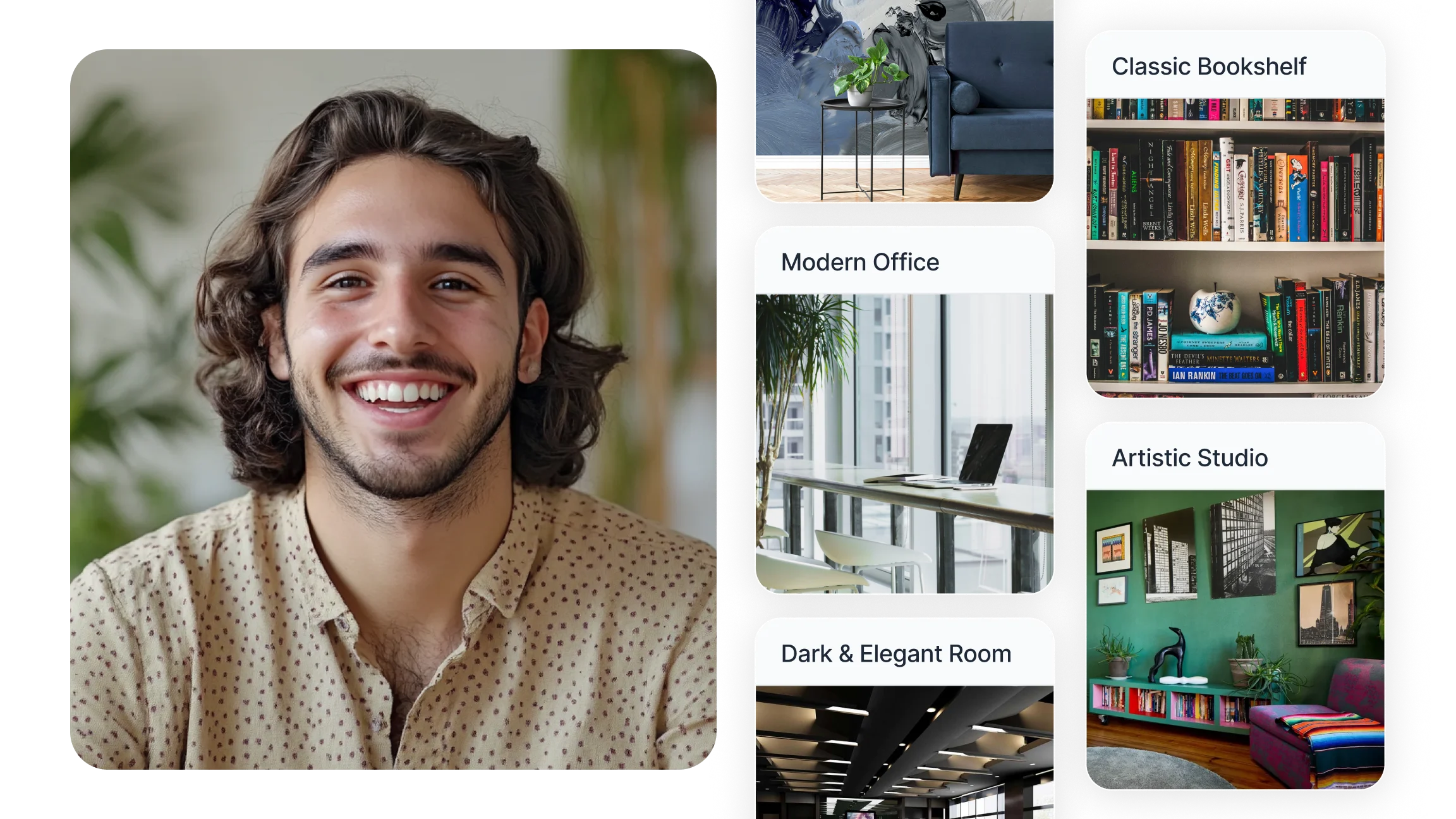
Why Professional Zoom Backgrounds Matter at Work
Your background is visible to every participant from the moment you join a call. Before you speak a word, it communicates something about your environment, your attention to detail, and your preparation. In client calls, interviews, and leadership meetings, a neutral and realistic backdrop keeps focus on what is being said rather than what is behind you.
For remote and hybrid teams, consistent professional Zoom backgrounds also create a more cohesive visual experience across the group. When participants are joining from bedrooms, kitchens, and co-working spaces, a shared standard for background quality reduces the visual disparity that can make distributed teams feel fragmented.
Privacy is a practical consideration too. A virtual background conceals your actual surroundings, which matters when working from a shared living space, a hotel room, or any environment where personal details might otherwise be visible to clients or colleagues.
20 Professional Zoom Background Ideas for Work Meetings
The backgrounds below are organized by setting and use case. Each one is chosen for its visual clarity, professional tone, and suitability for specific meeting types.
Modern Glass-Front Office
Clean lines, soft natural light, and a tidy desk visible through glass panels. Best for client calls and leadership meetings. Formal without feeling cold.
Warm Home Office with Desk Lamp
A cozy but organized desk setup with a lamp and minimal decor. Works well for one-on-one check-ins and coaching sessions. Approachable and tidy.
Minimalist White Workspace
Plain white walls, a single plant, and no visual clutter. Ideal for presentations and interviews. Non-distracting and modern.
Bookshelf with Neutral Tones
Organized books and subtle decorative objects on well-lit shelves. Works for academic calls, interviews, and team meetings. Suggests preparation and focus.
Soft-Focused Living Room
A subdued couch and artwork rendered in soft focus so no specific details are identifiable. Good for casual team syncs. Warm without drawing attention away from the speaker.
Conference Room with Long Table
A professional meeting room perspective with a table extending into the background. Best for formal presentations and panel discussions. Creates a business context regardless of the caller's actual location.
High-Tech Startup Office
Open-plan layout with modern fixtures and neutral tones. Fits creative meetings, product demos, and team presentations. Energetic but structured.
Textured Concrete Wall
An industrial-modern backdrop with clean lines and minimal texture. Suited to design, engineering, and technical discussions. Stylish and understated.
Branded Virtual Office
A neutral wall with a subtle company logo placed at eye level or in a corner. Best for client demos and sales calls. On-brand without being visually aggressive.
Window View with City Skyline
Daylight framing a distant cityscape. Good for leadership updates and investor calls. Provides context without adding clutter.
Professional Studio Look
Even lighting, a plain backdrop, and a neutral color. Ideal for recorded presentations and formal interviews. Clean and camera-ready.
Neutral Wood Panel Wall
Warm wood grain texture with minimal decorative elements. Works across team meetings and client conversations. Comfortable and organized.
Quiet Library Setting
Rows of books and soft ambient lighting. Well-suited to research calls, consultations, and educational sessions. Calm and considered.
Simple Art with One Accent Color
A single framed piece of art on a neutral wall. Best for creative and agency meetings. Adds personality without competing with the speaker visually.
Plant-Focused Corner
Greenery and natural textures in a well-lit corner. Good for informal check-ins and coaching. Fresh and relaxed without being distracting.
Executive Office with Shelves
A high-back chair and neatly arranged shelves visible in the background. Suitable for senior-level meetings and formal interviews. Signals authority while remaining tidy.
Clean Kitchen (Tidy and Modern)
Modern countertops with no clutter or personal items visible. Works for casual team catch-ups. Homey but organized enough for professional use.
Neutral Gradient Background
A soft color gradient with no objects or identifiable details. Best for webinars, focus-heavy sessions, and any meeting where the content on screen matters more than the environment.
Virtual Workshop Space
A whiteboard and markers visible behind the speaker. Ideal for brainstorming sessions and training calls. Practical and task-focused.
Soft Bokeh Office Lights
Blurred lights and depth of field that suggest an office environment without revealing any specific location. Well-suited to confidential calls where privacy is a priority.
What Makes a Zoom Background Look Professional?
The difference between a background that reads as professional and one that looks out of place usually comes down to three factors: color, resolution, and realism.
Color and tone
Neutral tones perform best in video calls. Soft grays, off-whites, warm beiges, and muted blues are recommended for professional Zoom backgrounds because they do not compete with the speaker's face or clothing for visual attention. High-contrast colors and busy patterns create visual fatigue for other participants and make the video compression algorithm work harder, which can reduce overall call quality.
Colors to avoid include bright red and orange, which can cause skin tone distortion in compressed video, and pure white, which can overexpose the image if your lighting is bright. A soft warm gray or a muted cool blue typically photographs well under most lighting conditions and reads clearly on all screen types.
Resolution and aspect ratio
For a background image to look sharp rather than pixelated on screen, it should be at minimum 1920 by 1080 pixels and formatted in a 16:9 aspect ratio. Images below this threshold show visible degradation, particularly on larger monitors. For the most polished result, 4K resolution images at 3840 by 2160 pixels are preferable when the file size does not create upload or performance issues.
Realism and depth
Backgrounds that include natural depth of field, such as a room with furniture at varying distances from the camera, look more realistic than flat images. This matters because Zoom's background replacement algorithm uses the depth signal to separate the speaker from the background more accurately. A flat image is easier for the algorithm to handle, but a realistic environment with subtle depth creates a more convincing final result, particularly for participants on larger screens.
Lighting consistency
The lighting in your chosen background should roughly match the lighting in your actual environment. A background that shows strong daylight while you are clearly sitting in a dim room creates an uncanny visual mismatch that draws attention. Backgrounds with soft, even interior lighting are the most forgiving across different real-world setups.
Where to Find and Download Professional Zoom Backgrounds?
Several reliable sources offer high-quality backgrounds suitable for professional use.
Zoom's official background library
Zoom maintains a curated collection of virtual backgrounds at zoom.com/backgrounds. These are formatted to the platform's specifications and include options from corporate environments, outdoor settings, and neutral abstract designs. All images in this library are approved for use within Zoom and sized correctly.
Unsplash
Unsplash provides high-resolution photographs under a free-to-use license. Searching for terms like "office interior," "modern workspace," or "minimalist room" returns a large selection of images that work well as professional Zoom backgrounds. Images are available at 4K resolution and can be downloaded without creating an account.
Canva
Canva offers a dedicated set of professional Zoom virtual background templates that can be customized with company colors, logos, or text. The free tier includes a selection of templates. The paid tier provides a broader range and the ability to export at higher resolution. Canva backgrounds are useful for teams that want a consistent branded appearance across members.
Etsy
Etsy hosts a marketplace of digital background downloads, including styled 4K office interiors, branded conference room environments, and seasonal or themed options. Prices are typically low and the files are usually formatted correctly for Zoom. These are useful for individuals or small teams that want a polished result without design work.
Your organization's brand assets Many organizations produce branded virtual backgrounds as part of their communications toolkit. These are formatted to specification, include the company logo, and are designed to be consistent across the team. If your organization has a marketing or brand team, this is worth checking before downloading external images.
How to Set Up a Virtual Background on Zoom?
Setting up a virtual background takes less than two minutes. The process differs slightly between desktop and mobile.
On desktop (Mac or Windows)
Step 1: Open the Zoom desktop application and sign in to your account.
Step 2: Click your profile picture in the top right corner and select Settings from the dropdown menu.
Step 3: In the Settings panel, click "Background and Filters" in the left-hand navigation.
Step 4: Click the plus icon to add a new image and select your downloaded background file from your device.
Step 5: The background will apply immediately. If the edges around your figure look rough or blurred, check the lighting in your environment. Sitting in front of a plain, evenly lit wall improves the algorithm's edge detection significantly.
Step 6: If you are using a physical green screen or solid-color backdrop, check the box labeled "I have a green screen." This tells Zoom to use chroma key removal rather than AI edge detection, which produces sharper results.
The recommended image specification for desktop is 1920 by 1080 pixels at a 16:9 aspect ratio. Images below this resolution may appear pixelated on larger monitors.
On mobile (iOS or Android)
Step 1: Join or start a Zoom meeting from the mobile app.
Step 2: Tap "More" in the bottom right corner of the meeting screen.
Step 3: Select "Background and Filters" from the menu that appears.
Step 4: Tap the plus icon to upload an image from your device's photo library, or select one of the available presets.
Step 5: The background applies immediately. For best results on mobile, sit in steady lighting and position yourself against a plain wall. Mobile AI background removal is less precise than desktop, so lighting and contrast between you and your real background matter more.
Common Zoom Background Mistakes to Avoid
Using an image with too low a resolution A background below 1280 by 720 pixels will appear blurry or pixelated, particularly on the screens of participants using larger monitors. Always download or save images at 1920 by 1080 or higher.
Choosing colors that clash with your clothing If your background and your clothing are similar in color, Zoom's edge detection can struggle to separate you from the image, causing your outline to blur or disappear in patches. Avoid wearing colors that closely match your background.
Using animated or video backgrounds in formal meetings Animated backgrounds create visual movement that competes for attention throughout the call. They are appropriate in informal settings but undermine the professional tone in client calls, interviews, and leadership meetings.
Picking a background that is too dark Dark backgrounds reduce contrast with the speaker's face in low-light environments and can make the overall video appear underexposed. A medium-toned background with soft, even lighting performs better across a wider range of calling conditions.
Not testing the background before joining a call A background that looks sharp on your screen may not appear the same way to participants on different devices or network conditions. Test your setup in a brief private meeting before any important call to verify how it appears on the other end.
Smart Noter complements a polished video call setup by handling the documentation side of your online meetings. While a professional background manages how you appear, Smart Noter's meeting summarizer captures what was said, producing a full transcript and structured summary automatically after each Zoom session so your preparation carries through from the first impression to the final follow-up.
