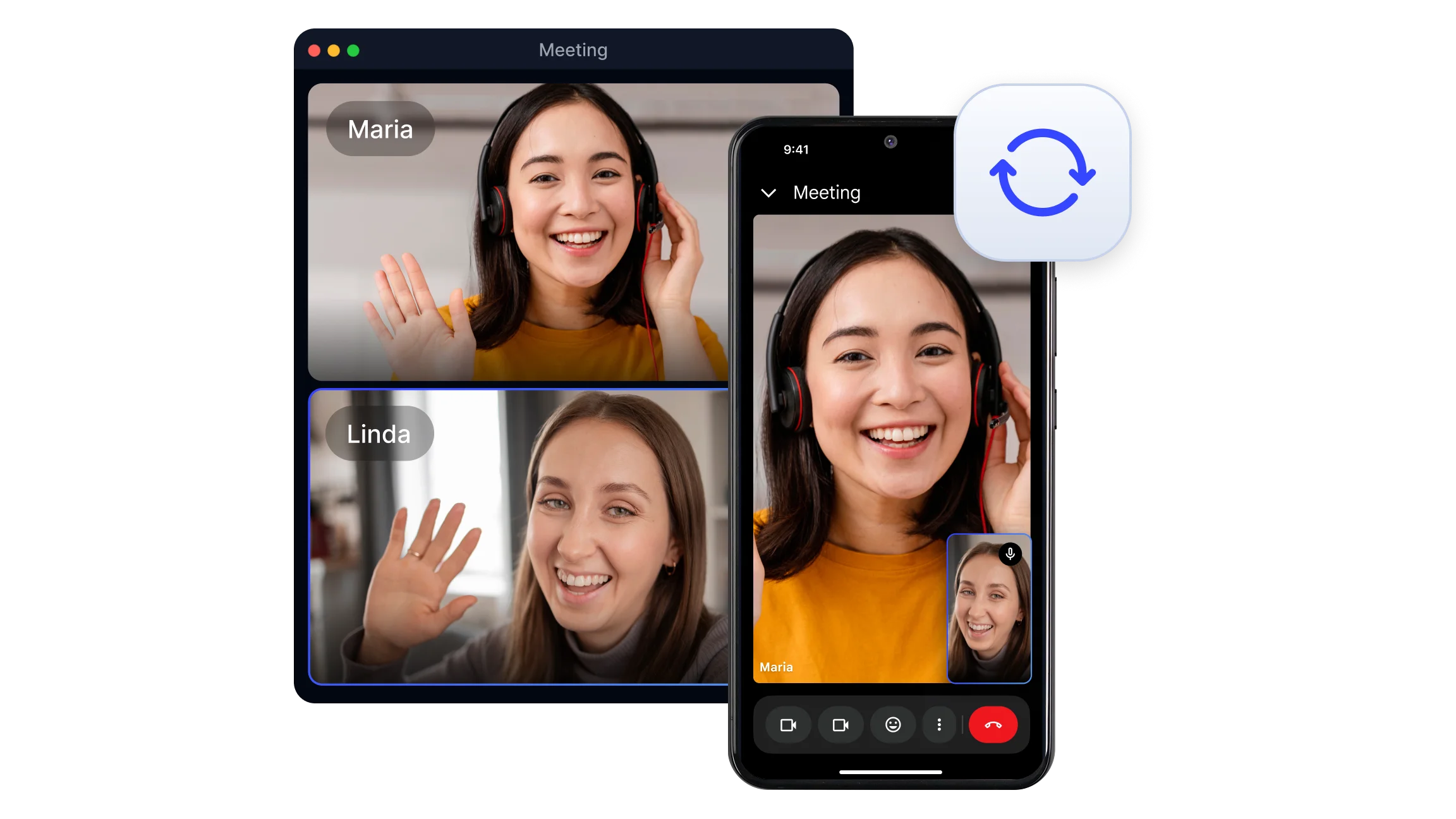
What Is Companion Mode in Google Meet?
Companion Mode is a feature Google introduced to solve a specific hybrid meeting problem: when a participant is physically present in a conference room that uses shared hardware for audio and video, joining the meeting separately on their personal device creates audio feedback and echo. Companion Mode eliminates this by connecting the personal device to the meeting session without activating its microphone or speaker.
The result is that the room system continues to handle all audio and video for the space, while the participant's laptop, tablet, or phone provides a separate interface for accessing interactive features that shared room systems often do not support. Chat, polls, Q&A, hand-raising, reactions, and screen sharing all become available on the personal device without disrupting the room's audio.
Companion Mode also solves a visibility problem in hybrid meetings. When a group of people join from a single conference room, they typically appear in the participant list under the room's name rather than their own. Using Companion Mode allows each in-room participant to be identified individually by their own name, making it clearer who is present and who is speaking for remote attendees.
Key Features of Google Meet Companion Mode
Camera and microphone disabled by default
When joining in Companion Mode, the device's microphone and camera are switched off automatically. This prevents audio feedback and echo that would otherwise occur when two active audio sources are present in the same physical space.
Chat, Q&A, and polls
The companion device provides full access to the meeting's text-based interaction tools. Participants can send messages in the group chat, submit questions through the Q&A panel, respond to polls, and view all incoming messages and results in real time.
Hand raise and reactions
Emoji reactions and the hand-raise feature are available on the companion device. These allow in-room participants to signal to the meeting without speaking, which is particularly useful in large meetings where verbal interruption would be disruptive.
Screen sharing from a personal device
A participant in Companion Mode can share their screen directly from their personal device without creating duplicate audio. This is useful when a presenter wants to show something from their laptop rather than from the shared room display.
Live captions on the companion device
When live captions are enabled for the meeting, they appear on the companion device screen. This gives in-room participants a readable text feed of the conversation even when the room's primary display is showing shared content or the main video feed.
Individual identification in the participant list
Each participant using Companion Mode appears in the participant list under their own name rather than the conference room name. Remote attendees can see exactly who is in the room and who is speaking, which supports more equitable participation in hybrid sessions.
Room check-in
Participants can check in to a specific conference room through their companion device, linking their personal video tile to the room's hardware. This allows others in the meeting to see which room a participant is joining from and to associate the room's audio with the individual participant.
Proximity detection If a participant is physically near Google Meet room hardware, the Google Meet application may automatically suggest joining in Companion Mode. This prompt reduces the steps required and makes the feature easier to use without manual configuration.
How to Join Companion Mode in Google Meet?
There are three ways to activate Companion Mode when joining a Google Meet session.
Method 1: From the meeting invite or link
Open the meeting link on the second device, whether a laptop, tablet, or phone
On the pre-join screen, look for the option labeled "Other joining options" or "More joining options"
Select "Use Companion Mode" from the available options
Confirm the join and the device connects with camera and microphone disabled
Method 2: Via g.co/companion
Open a browser on the second device
Navigate to g.co/companion
Enter the meeting code from the calendar invite or copy and paste the full meeting URL
Confirm to join in Companion Mode
This method works without needing the original meeting link and is useful when joining from a device that did not receive the calendar invite directly.
Method 3: Proximity detection prompt
If the second device is near a Google Meet-enabled conference room, Google Meet may automatically detect the room hardware
A prompt appears suggesting Companion Mode for that device
Accept the suggestion to join without activating the device's audio
After joining via any method, the companion device shows the full meeting interface including chat, participants, and interactive tools, while the room system continues to handle all audio and video for the space.
When to Use Companion Mode and When Not To?
Companion Mode is designed for specific hybrid scenarios. Using it in the wrong context limits what the device can do without providing the audio or video benefit the feature is built around.
Use Companion Mode when:
You are physically present in a conference room where a dedicated room system is managing the meeting audio and video
You want to access chat, Q&A, polls, or reactions on your personal device without causing audio feedback in the room
You need to share your screen from your personal device while the room's main display shows something else
You want to appear individually in the participant list rather than under the generic conference room name
You are a remote participant joining on a second device and want to view shared content or access the chat on a separate screen while keeping your main audio and video active on your primary device
Do not use Companion Mode when:
You are joining the meeting as your primary connection point, meaning you need your own microphone and camera active
You are working from home or a location without shared room hardware and need full audio and video participation
You want to record the meeting from your device, as Companion Mode does not provide independent recording access
The meeting requires you to be visually identified through your own camera, not just listed by name
Companion Mode vs Regular Join: What Is the Difference?
The distinction between Companion Mode and a regular meeting join comes down to what the device is expected to contribute to the meeting.
Regular join connects the device as a full participant with its own active microphone, camera, and speaker. The device is the primary audio and video source for that participant. This is the standard mode for anyone joining from home, a private office, or any location without shared room hardware.
Companion Mode connects the device as a secondary interface for someone who already has audio and video handled by a separate system in the same physical space. The device adds interaction capabilities without adding another audio or video stream. Using both simultaneously in the same room eliminates the echo and feedback that would otherwise occur.
The key practical difference is that regular join is a standalone participation method, while Companion Mode is a supplementary one. Companion Mode only makes sense when there is already a primary audio and video source active in the same environment.
How Companion Mode Affects Meeting Documentation?
Joining a meeting in Companion Mode does not prevent the session from being recorded or transcribed. The host or a designated participant can still start a recording through the primary meeting connection, and that recording captures all audio from the room system regardless of how individual participants have joined.
For teams that document hybrid meetings through transcription and AI generated summaries, Companion Mode does not create any gaps in the documentation workflow. The audio captured by the room system is the source for transcription, and all contributions made verbally through that system are included in the transcript regardless of whether individual participants are in regular join or Companion Mode.
Smart Noter integrates with Google Calendar and processes meeting recordings automatically after each session. The output includes a full transcript with speaker labels and timestamps, and an AI generated meeting summary that extracts key decisions and action items. For hybrid teams using Companion Mode as part of their standard meeting setup, this workflow ensures that every session produces a complete and searchable record without requiring additional manual steps from any participant.
