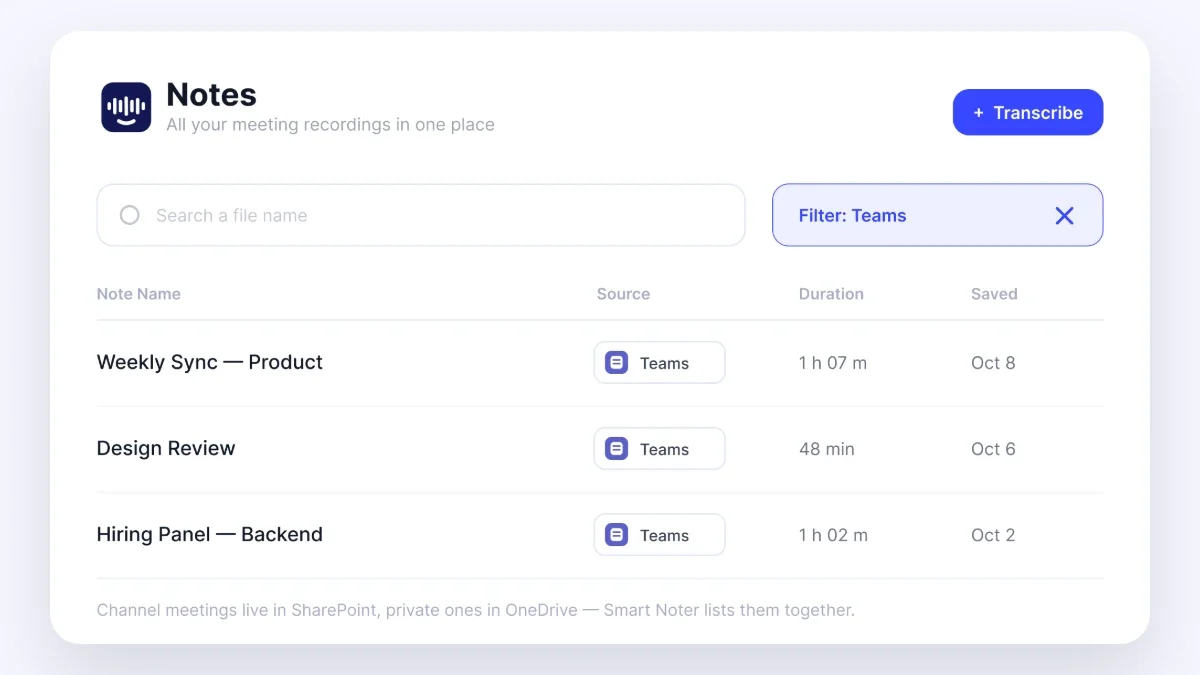
The key rule is simple: a standard meeting recording belongs to the account that started it. Your organization does not necessarily have open access just because employees attended the call. With channel meetings, access follows the SharePoint site and the channel's membership settings.
If you started the recording, check OneDrive first. The file should be in Recordings unless someone moved, renamed, deleted, or removed it under a retention setting. A separate recording workflow can help you keep future meeting details from depending on one video file and one storage location.
How to Find a Teams Recording
Start with the meeting chat, since Teams usually posts a recording card there after processing is complete. Open the conversation connected to the meeting and look around the meeting end time. In a busy recurring chat, though, newer messages can bury that card surprisingly quickly.
Next, open the past meeting from your Teams calendar. Look through the recap, meeting details, or recording area, depending on what your organization has enabled. What you see may also depend on whether you organized the meeting, recorded it, or attended as a guest.
If neither route works, go straight to the file storage. For a standard meeting, ask the recorder to open OneDrive and check the Recordings folder. For a channel meeting, open the channel files and look in its SharePoint recording location.
Search is often the best final option for how to find Teams recordings. Try the meeting date, title, recorder's name, or a participant's name to narrow the results. Meeting titles can change, especially for recurring events, so searching by date is often more reliable than relying on the file name alone.
When working out where to find Teams recordings, first confirm whether the meeting was held in a channel. That one detail also helps answer how to find a recorded Teams meeting after the chat link has disappeared from view. If you only attended the meeting, you may need to ask the recorder to locate and share the file.
How to Download a Teams Recording
For how to download a Teams recording, open the file in OneDrive or SharePoint instead of relying on the chat preview. Select the available file actions, then choose Download if you see the option. Your browser or device will save the file in its usual download location.
Whether you can download the recording depends on the permissions attached to it. Being invited to a meeting does not always mean you can save a separate copy. The owner, or someone with the right SharePoint access, may need to update your permissions before how to download Teams recording is possible.
If Download is greyed out or missing, make sure you opened the stored file rather than a restricted preview. You can ask the owner to give you suitable access or download the video for you. Your organization's policies may still block downloads even if you can watch the recording online.
The same steps apply to how to download Teams meeting recording, how to download a Teams meeting recording, and how to download recording from Microsoft Teams. For how to download a recorded Teams meeting, start with the original OneDrive or SharePoint file whenever you can. A copied chat link cannot give you permissions the original file does not allow.
Smart Noter works with Microsoft Teams, Zoom, Google Meet, Google Calendar, and Microsoft Outlook through its integrations. That helps you keep useful meeting details from getting stuck in a single chat thread. You can review the resulting notes in a format that is easier to find later.
How to Share a Teams Recording
For how to share a recorded Teams meeting inside your organization, open the OneDrive or SharePoint file and select Share. Add the person directly or create a link with the appropriate access settings. Before you send it, check whether recipients can only view the file or can make changes.
A shared link keeps the original recording in its existing storage location. Sending a downloaded copy creates a separate file, which will not reflect later permission changes or deletion of the original. Use a link when the owner needs to keep control of access, and send a copy only when your policies allow separate storage.
A common problem happens when someone opens the link and sees an access denied message. The link may have been made for specific people, the recipient may be signed in with another account, or external sharing may be restricted. Rather than sending the same link again, ask the owner to check the file permissions.
If you are asking how do you share a recorded Teams meeting with someone outside your organization, access depends on OneDrive, SharePoint, and administrator settings. Those settings can prevent the owner from sharing the file directly. If that happens, use your organization's approved method for sending meeting content.
Recordings Expire, and Most People Find Out Too Late
A recording expiry setting can remove a Teams file after a fixed period. That period is usually controlled by an administrator through a retention policy, not by the person who started the recording. This is why an old link can stop working even when nobody remembers deleting the file.
From your perspective, expiry and deletion can look exactly the same. Depending on your organization's settings, an expired recording may be recoverable for a limited time before it is permanently removed. Contact the file owner or administrator as soon as you notice the problem, since recovery windows can be short.
The recorder's account creates another risk. When someone leaves the company and their account is deactivated, their OneDrive files must be handled under the organization's account procedures. If the recording is not transferred or preserved, attendees may lose access to it.
For how to save a recorded Teams meeting over the longer term, do not rely on the video alone. Keep an approved text record of decisions, responsibilities, deadlines, and enough surrounding context to make those details useful later. Text is easier to search and still helps when video access changes.
Smart Noter supports transcription from live audio and uploaded audio or video files. It can create timestamped dialogue, identify speakers, summarize key topics, and pull out action points from the conversation. That gives you a practical meeting record that does not depend on finding the right point in a long video.
If you need to understand how do I delete a Teams meeting recording and transcript, remember that the video file and Teams transcription can be separate records. Delete them only if you have the right permission and your organization's retention rules allow it. Guidance on how to turn on transcription in Teams applies before or during a meeting, while this page focuses on recordings that already exist.
Finding a Moment Inside a Recording
Finding the file is only the first step. A long recording can still hide the decision, deadline, or assigned task that brought you back to it. Scrubbing through a long timeline relies on memory and often means sitting through sections that have nothing to do with your question.
A searchable transcript gives you a quicker path to the relevant passage. Search for a project name, participant, date, or memorable phrase, then use the timestamp to jump to that point in the audio or video. Speaker labels are useful when you remember who said something but not the exact words.
Smart Noter offers an AI chat space where you can ask focused questions about captured notes. For example, you might ask what tasks were assigned in last week's strategy meeting or what was decided about a deadline. The answer draws on the meeting record, so you can review the relevant details without replaying the entire file.
This turns retrieval from a file search into a direct question. It is especially helpful when you remember the subject but not the meeting title or date. Searchable records also make it easier to look for recurring themes across several conversations.
When where are teams recordings stored becomes an urgent question, what you really need is the information inside the file. A recording you cannot find, access, or preserve might as well not exist. Smart Noter helps keep meeting details searchable after the conversation ends.